WorkComposer for Slack
Keep your team's hours visible where you already work. WorkComposer sends daily and weekly work-time summaries, idle-time alerts, task assignments, and manual-time approvals straight to Slack as direct messages — powered by Block Kit.
Connects securely with OAuth · Direct messages to individuals, never channel spam
Notifications
What you'll get in Slack
WorkComposer delivers each notification type as a direct message to the right person. Admins choose which notification types are turned on for the workspace.
- Daily & weekly summaries
A tidy recap of hours worked vs. required, break time, and activity score — delivered each day and each week to every team member.
- Idle-time alerts
When someone goes over their idle-time limit, they and their manager get a clear alert with the numbers behind it.
- Team below-target summary
Admins get a daily and weekly digest highlighting the members who fell below their target hours or activity.
- Task assignments
When a task is assigned to someone, they get a Slack DM with the task, project, priority, and due date.
- Manual-time approvals
Approvers receive manual-time requests with Approve and Reject buttons right in Slack; the requester is notified of the decision.
- Project updates
People are notified when they're added to a project, so nobody misses a new assignment.
From tracked time to a message you'll actually read
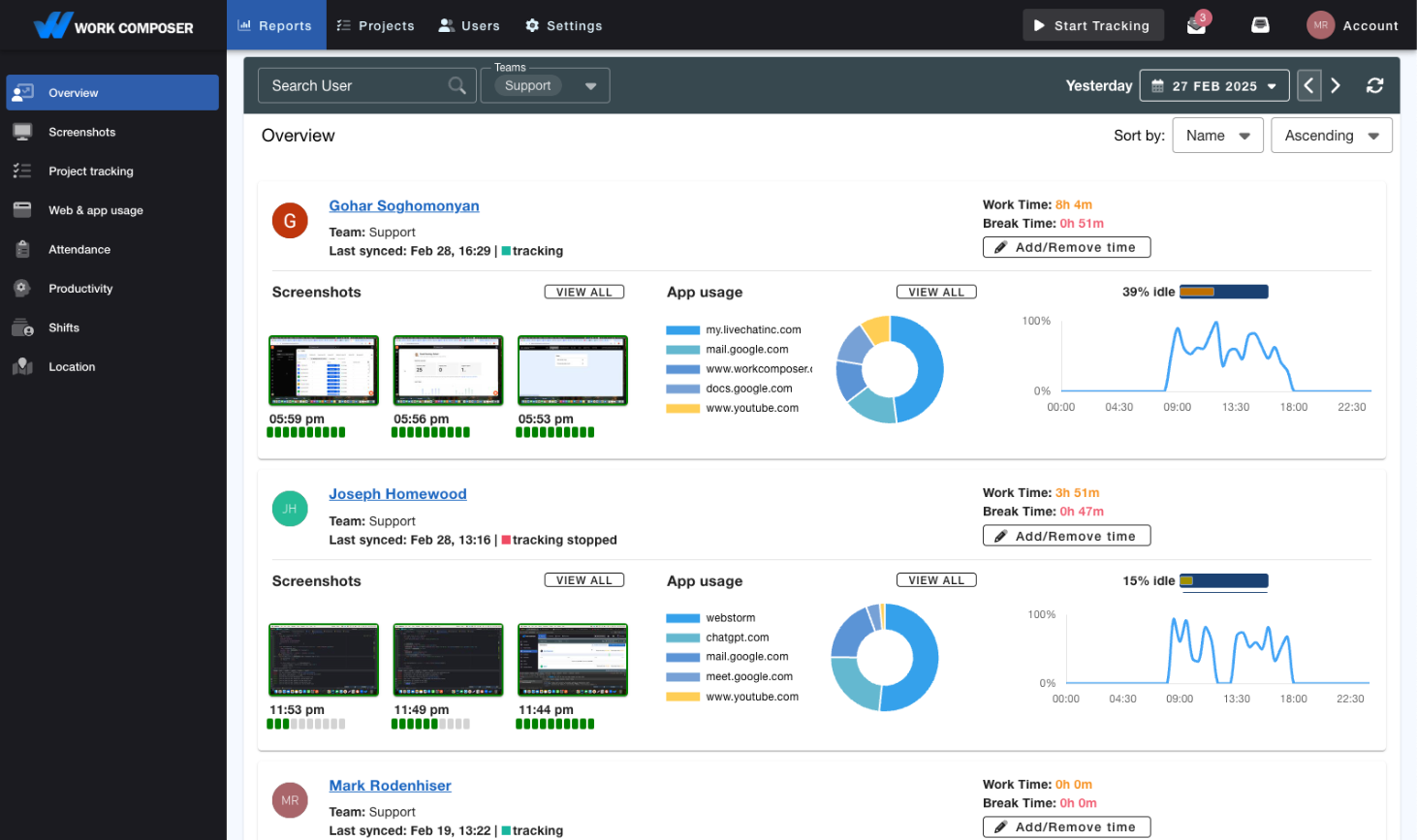
WorkComposer tracks work time automatically on the desktop app and turns it into clear reports — worked vs. required hours, activity score, and idle time. The Slack integration surfaces the moments that matter as concise Block Kit messages, each linking back to the full report in WorkComposer.
- Approve or reject manual-time requests without leaving Slack.
- Get a heads-up the moment idle time runs over your limit.
- Managers see a daily summary of anyone below target.
Setup
How to install in four steps
WorkComposer's Slack connection is made from inside your WorkComposer account and set up once per workspace by an admin — it takes about a minute. Here's exactly how to reach the Add to Slack button and connect.
- 1
Open WorkComposer's Slack settings
Sign in to WorkComposer and go to Settings → Integrations → Slack, or click "Connect Slack in WorkComposer" on this page. No account yet? Start a free 7-day trial first, then come back here.
- 2
Click "Add to Slack"
On the Slack integration page, click the Add to Slack button and authorize your workspace. WorkComposer requests only a minimal set of permissions — enough to match you to your Slack account and send direct messages.
- 3
Choose your notifications
Pick which notification types to turn on for the workspace — daily/weekly summaries, idle alerts, task assignments, manual-time approvals, and project updates.
- 4
Start getting updates
WorkComposer starts delivering notifications as direct messages to the right people — and you can send yourself a test message any time from the Slack integration page to confirm it's working.
Privacy & security
WorkComposer requests only the minimal Slack permissions needed to send you notifications. Access tokens are encrypted at rest, and disconnecting removes them. Read the full privacy policy.
Support
Questions about the Slack integration? Reach the WorkComposer team at support@workcomposer.com or through our contact page.
New to WorkComposer? Time tracking starts at $3.99/user/month — see plans and pricing or start a free 7-day trial.
Ready to transform your team's productivity?
Join teams tracking time smarter. Start your free trial today—no credit card required.
- Setup guides available
- Full access to all features
- Cancel anytime, no questions asked
- Dedicated support to get you started