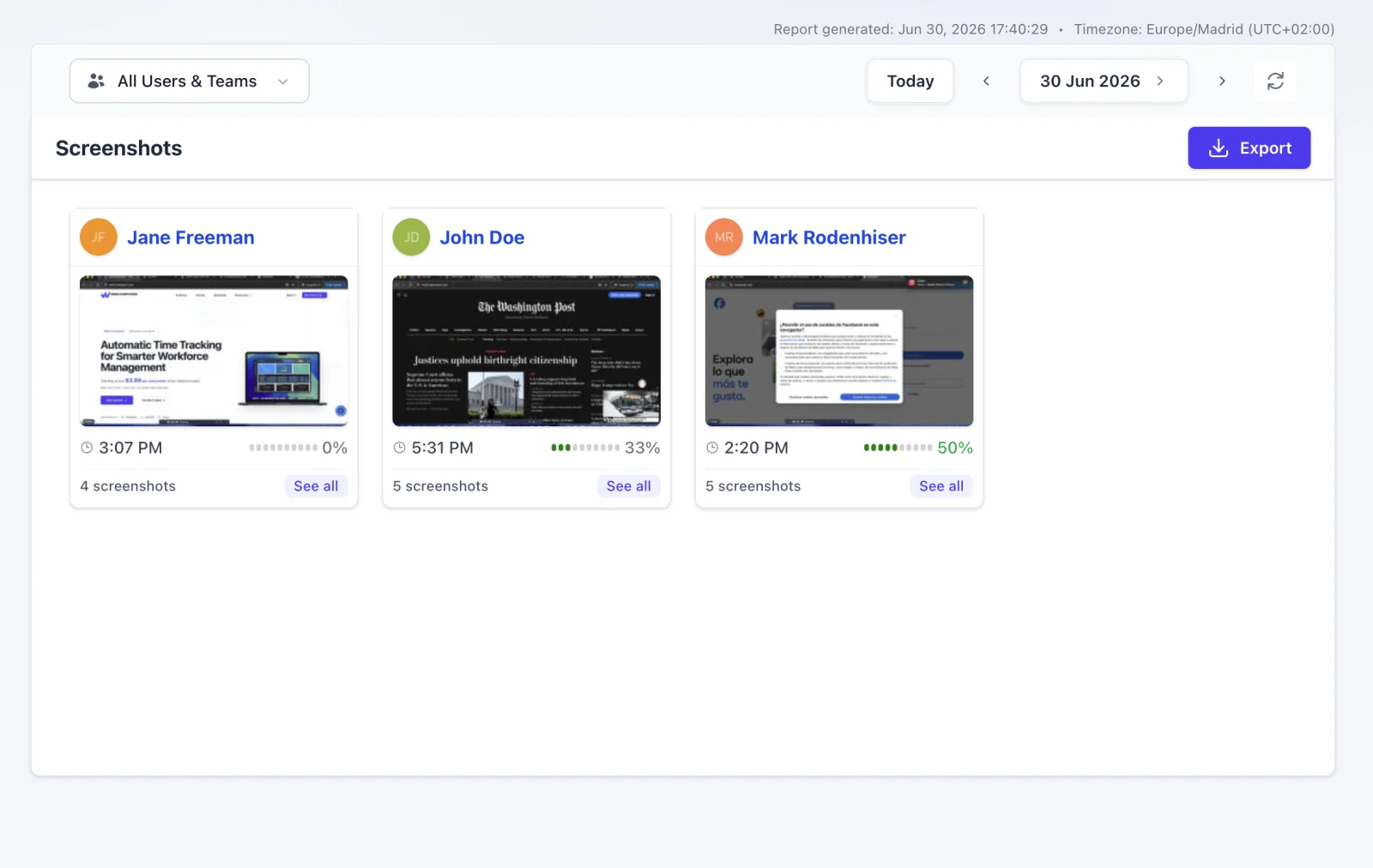
How to roll out screenshot monitoring with a small team
Set up capture for a small pilot, then check that a manager can find and review the screenshot you meant to collect.
Tell the team what the pilot covers
Agree what you need to review, which people are in the pilot, who can see captures and how participants can raise questions. Use a test work session with safe content.
Use the time tracking privacy checklist if you also need to review app and website settings, storage or retention.
Configure capture and timing
Open Settings → Time Tracking → Screen Capture. For a selected-user pilot, leave Capture screenshots when tracking off as the organization default and use Configure per user on that setting to enable only the pilot participants. Check the other overrides before testing.
The organization timing and privacy controls appear when capture is enabled by default. In that setup, you can choose a frequency from 3 to 60 minutes. Random timing uses the selected frequency as its upper bound. If you use Premium screenshot blurring, verify the result with a demo capture.
If an expected capture is missing, check the report and capture settings before repeating the pilot session.
Confirm the manager can find a capture
Have a participant track a work session. In Time Tracking → Screenshots, choose the person and date, then open a capture. Compare its timestamp with the relevant work period in Attendance. Discuss the pilot with participants before expanding it.
If you need a saved copy for the evaluation, test a screenshot export with fictional content first.