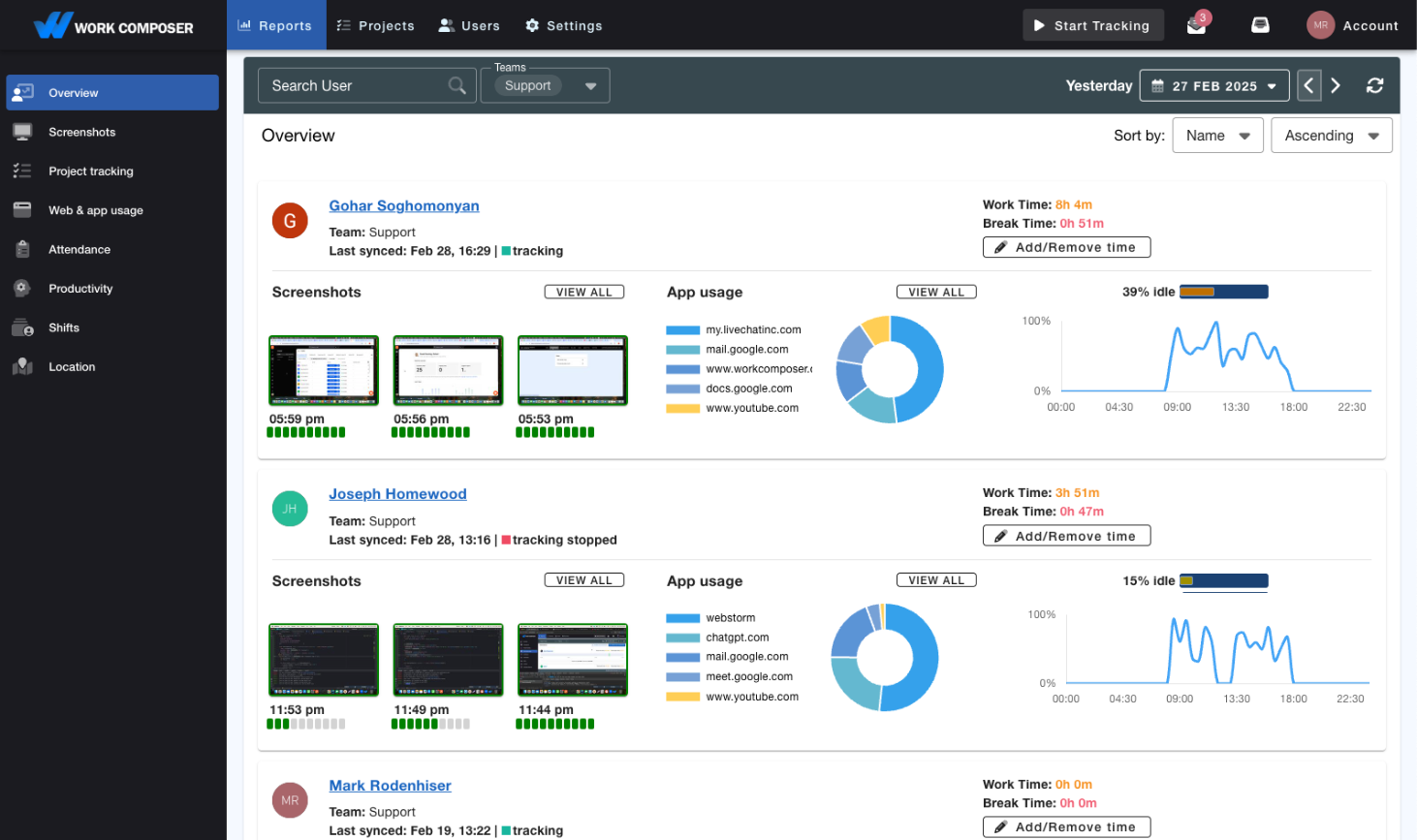
Customer Support Time Tracking
Review recorded support hours alongside your staffing plan. Track time against activities your team selects, such as live chat, email support, and escalations.
Try one support handoff
- Use a test workspace and a fictional 30-minute handoff that fits within one roster date. Have one lead and two agents take part. Note who covers live chat, who clears email, when assignments change and the roster’s time zone.
- With project tracking enabled, give both agents access to a support project. Assign each agent a task for every queue they will cover and have them confirm those tasks appear in the desktop tracker. During the pilot, each agent selects the task for their current queue.
- After the tracking records sync, have the lead sign in with their own account in the same test workspace. Confirm that their View Reports access covers both agents. In Time Tracking → Attendance, select the handoff date as a single day and match Report Timezone to the roster. Compare both agents’ timelines with the handoff window.
- Open the pilot project in Project Tracking for the same date and report time zone. If Select Users is available, choose both agents. Compare recorded queue task totals and open the tasks to check Who worked on this when available. Keep the contributor check open if the details are missing.
If an agent is missing from the report, recheck the filters and ask a workspace admin to confirm the lead’s reporting access. Use your helpdesk for queue availability, ticket volume and response times. If records disagree or evidence is missing, keep the queue and time window unresolved while the transfer is unclear. For example, No tracking data during the handoff and no helpdesk transfer note leave a gap to check. Ask the lead to verify it with both agents and record the next check.
Use the support shift handoff checklistThe Support Team Challenge
Account for the time around a support handoff
A roster gives you assignments. A help desk shows ticket activity. Review recorded time alongside both before changing the next shift.
- Hours across shifts
Give the outgoing and incoming lead the same date, time zone, and handoff window to review.
- Different support activities
Agree when your team should label time as live chat, email, or escalation work.
- Gaps that need an explanation
Check planned breaks, changes to assignments, and missing tracking before making a staffing decision.
The Solution
Review the time behind your support operation
Use attendance, project time, and focused activity reports to check what your team recorded during a shift.
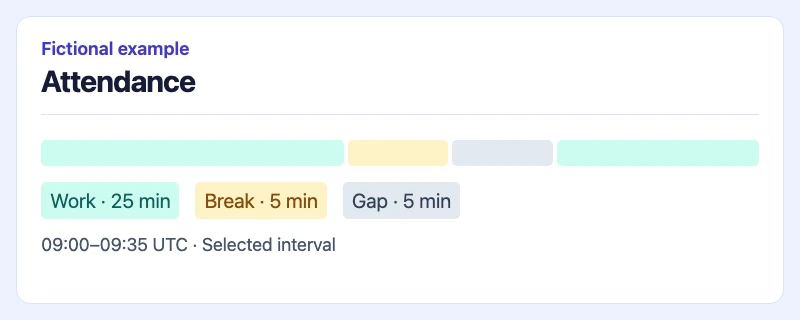
- Review recorded attendance
Use Attendance to review logged work, recorded away time, and breaks. Use the Shifts report, when enabled, to review recorded start, finish, and work time.
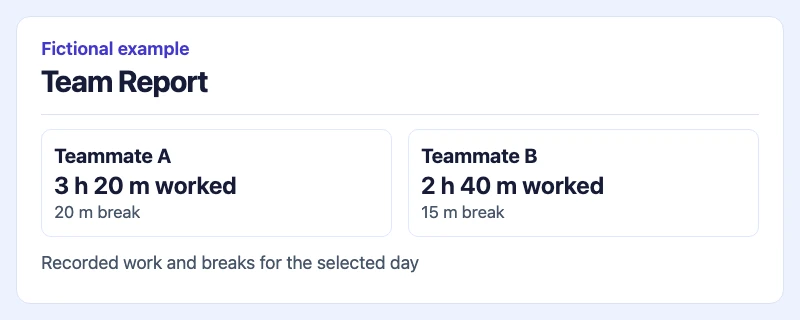
- Review team worked time
Use the Team Report to see recorded worked time for people you can report on. Compare it with the planned shift before following up.
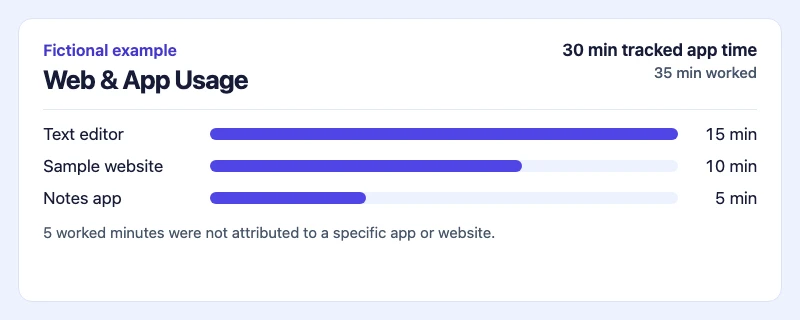
- Check web and app usage
Use the Web & App Usage report as context for time recorded in support tools. Check current queue availability in your help desk. The fictional example shows 30 of 35 worked minutes attributed to apps or websites.
- Review optional screenshots
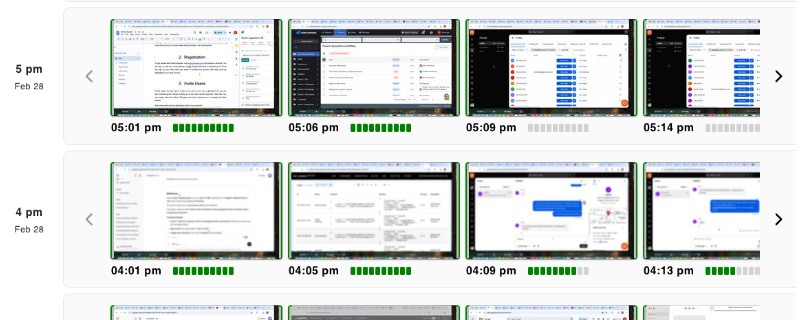
When screenshot capture is on for an agent, use the Screenshots report to review captured screens. Choose capture settings for your team before the pilot.
- Review productivity categories
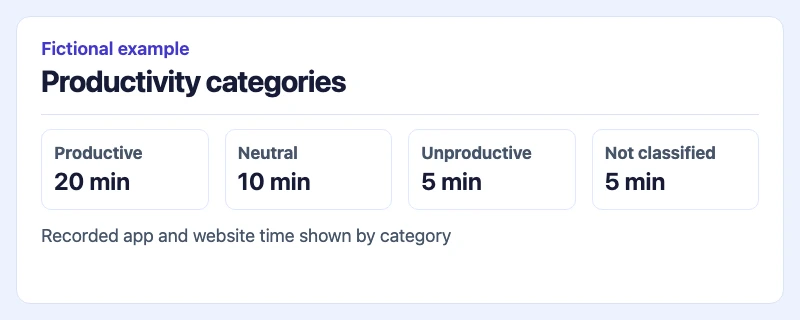
Review time recorded for apps and websites by category in the Productivity report. Use the help desk for service metrics such as response time.
- Track time by support task
With projects and tasks enabled, have agents select the task assigned to them for their current queue in the desktop app. Use Project Tracking to see time recorded against the selected tasks.
After the handoff
What to check before your next shift
Look at the same people and handoff window in both records to see where you need to follow up.
Attendance shows breaks separately from work. Recorded away time appears in worked totals.
Check the time recorded against the chat and email tasks. Ask about time without a task before using those totals.
Check reply times and ticket volumes in your help desk for the same handoff window.
Confirm the schedule, tracking, and report filters with the agent before classifying a gap.
$3.99 per user/month with annual billing.
Security & Compliance
Choose what to capture during support work
Decide which records you need for the handoff before enabling extra capture.
- Optional screenshots
Choose whether WorkComposer captures screenshots while agents track time. Review the workspace default and any per-user settings before the pilot.
- Blur before upload
Premium includes screenshot blurring. Review a sample image first to see how much detail remains visible.
- Report access
Check which people and records each lead can see in their reporting scope before expanding the pilot.
Frequently Asked Questions
- How do I compare tracked support time with a scheduled shift?
- When Shifts is enabled, open Time Tracking → Shifts to review recorded starts and finishes. Use Export to compare those times with the scheduled shift start and end. Use Attendance to inspect work, away time, and breaks for the same people, date, and time zone.
- Can we track time by support queue?
- With project tracking enabled, give each agent access to the support project and assign them a task for each queue they cover. Have them select the assigned task in the desktop tracker. Project Tracking shows time recorded against those tasks in the selected period.
- Can we review attendance with screenshots turned off?
- Yes. Screenshot capture is optional. You can review recorded hours and breaks in Attendance with capture off.
- How should we handle screens that contain customer information?
- You can turn capture off for selected people. If you use Premium screenshot blurring, test it on sample material to see what details remain visible.
- Where should our lead review ticket response times and queue status?
- Use your help desk reports for response times and queue status. Use WorkComposer Attendance and Project Tracking to review recorded time and the support work teammates selected.
- What should we check if a handoff shows no tracking data?
- Check the person, date, and report time zone. Compare the roster and confirm that tracking was running before treating the gap as missed coverage.
- How do we start a support time tracking pilot?
- Start a free trial, invite a shift lead and two agents, and have them set up the desktop tracker. Pick one handoff and review the recorded time together.
Ready to transform your team's productivity?
Join teams tracking time smarter. Start your free trial today—no credit card required.
- Setup guides available
- Full access to all features
- Cancel anytime, no questions asked
- Dedicated support to get you started