Test screenshot blurring before a team rollout
WorkComposer Premium can blur screenshots before upload. Compare new captures of the same fictional screen at full size to see what stays readable and decide whether to collect screenshots.
Set up a test with fictional content
- Use an approved test workspace limited to pilot accounts and choose one test account. Before you start tracking, clear real customer and employee information from all displays that may be captured. Open a fictional document with a large heading, small text and an image.
- Open Settings → Time Tracking → Screen Capture. To show the timing and privacy settings, turn on Capture screenshots when tracking as the organization default in the test workspace. Set Screenshot frequency to a known value, such as five minutes, and turn off Randomize screenshot frequency.
- Set the organization default under Blur screenshots before uploading to Disable blurring. On the blur row, open Configure per user to check the test account’s blur level and change it there if needed. An individual override takes precedence over the organization default. Use the capture and frequency rows to confirm the test account has capture on and uses the planned interval.
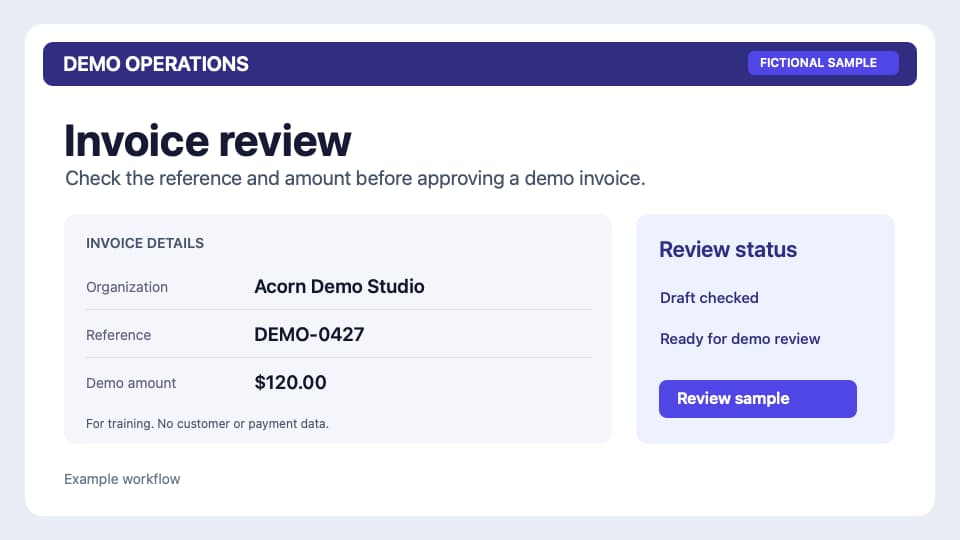
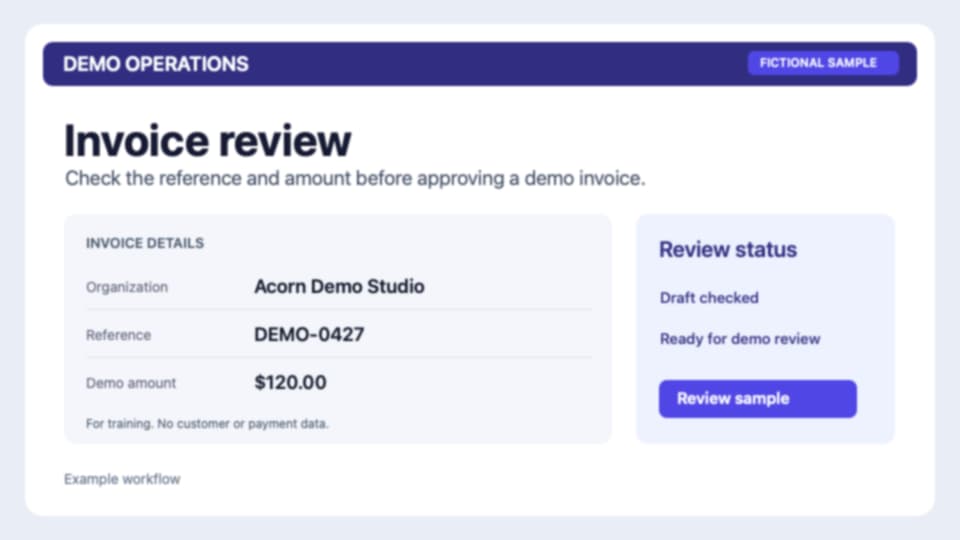
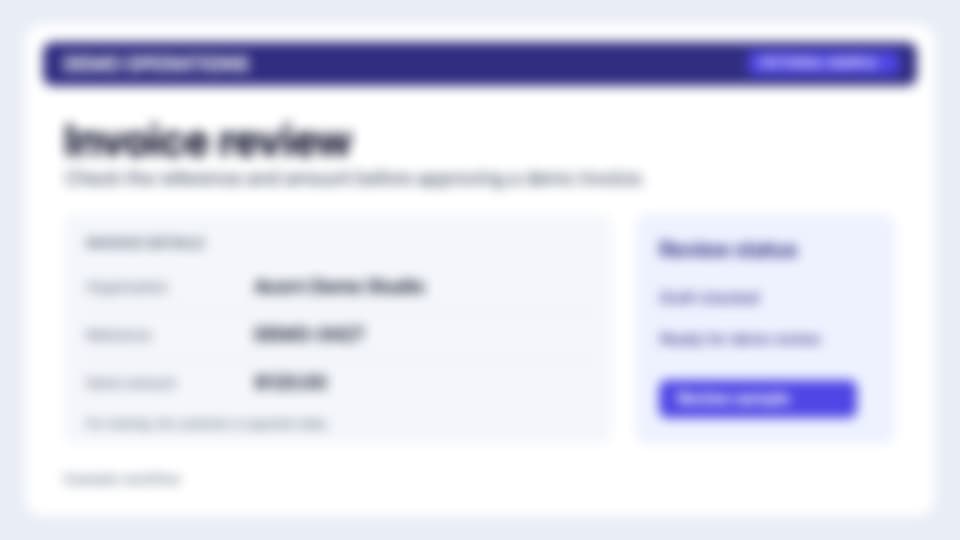
- With the intended settings in effect, track with the test account for at least the configured capture interval and let the desktop app sync. Record when the session started and ended. Repeat for Slightly blurred and Maximum blurring. Check the test account’s blur level each time and keep the same content and screen scale.
Compare full-size captures
In Time Tracking → Screenshots, find the test account and date. Match the capture time to each session, open the matching screenshot, then choose Open full size in a new tab in the viewer.
Check whether you can still read large headings or small text and recognize images or window context. Note what detail remains visible with each setting and whether the capture still serves the purpose you agreed on.
What the three settings look like
These illustrations use the same fictional 960 × 540 screen, processed with WorkComposer Desktop 26.11.0 on macOS. Results can vary with the screen content, resolution, device and scaling.
Decide whether to collect screenshots
Blur changes the image pixels. A screenshot still has a capture time and is associated with the person in the report. Review the separate Application & website tracking setting for data such as app names and website URLs.
Choose a blur setting only if the visible detail is acceptable and gives you the context you need. If captures could still include information you cannot collect, turn off screenshot capture for that workflow. If you do proceed, use the small-team screenshot rollout guide to plan the pilot.